Photo comparison workflow
How to Compare Photos Side by Side on Windows
To compare photos side by side on Windows, start with Microsoft Photos’ multi-view if your pictures are already in one collection. Use Windows Snap for two full-size windows. If you are browsing several references while working in another app, keep a small image board visible and return to the originals for close inspection. This guide shows all three layouts and a four-photo comparison you can repeat.
Decide what you are comparing before opening more photos
Choose one question: Which composition fits a project? Which lighting treatment should you study? Which of two exports preserves small details? The answer determines the layout. A grid of thumbnails can help you shortlist visual directions, but it is a poor place to judge sharpness, small text or exact colors.
For a fair comparison, choose images of a similar subject, angle and crop when possible. If the candidates have different framing or lighting, record that difference before treating it as a difference in the subject. Keep a link or filename for every original so you can inspect it again.
Compare multiple local photos in Microsoft Photos
- Open the current Microsoft Photos app and navigate to the folder containing your candidates.
- Open one photo, then use the filmstrip to select the other photos you want to view in multi-view.
- Compare the same feature in each image, such as a crop, reflection or edge detail. Return to a larger view before making a decision about fine quality.
Microsoft documents multi-view in the new Photos app as a way to compare photos and videos side by side by selecting items in the filmstrip. Its interface may differ if you have Photos Legacy or an older app version. This built-in option is a good starting point when the originals are local and you do not need them above a separate working app. Documentation checked on 1 October 2026.
Use Windows Snap for two large images or browser pages
When you need to read details at a larger size, open the two originals in separate windows. These could be two browser windows showing source pages or an image viewer beside the app where you work. Select the first window and press Windows + Left Arrow; select the second and press Windows + Right Arrow. Resize the divider or use the available Snap layout to leave enough room for both images.
Microsoft’s Snap guide also describes dragging windows to screen edges or corners and filling the remaining space with Snap Assist. This layout is useful for checking two full-size views. If you keep switching among four candidates, narrow the set to two finalists before examining small details.
Keep a short image shortlist visible while you browse
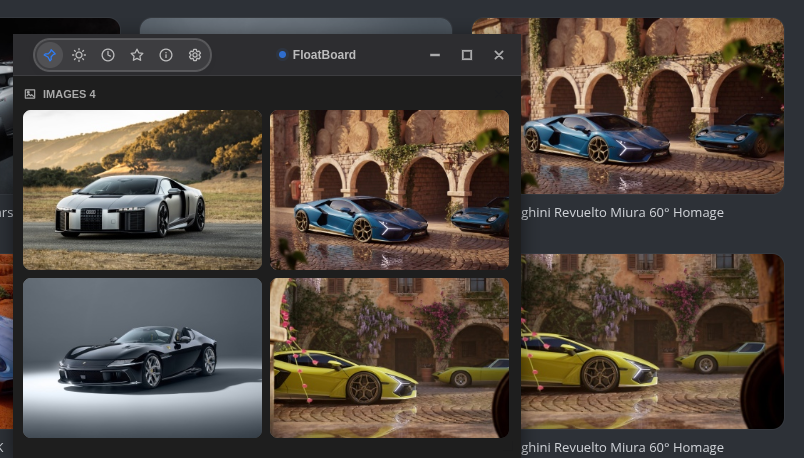
The screenshot above shows a real FloatBoard layout: four car images in a two-by-two grid, with larger source photos visible in the browser behind it. Use this kind of board when your task is to keep a few references in sight while you browse, draw or write—not to replace the original files or pages.
- Save each source URL or original filename in your project notes. Use images you are allowed to keep and share.
- Add two to four candidate images to FloatBoard using the image workflow in your installed version. The free plan currently allows five images per day and one window.
- Position the board where it does not cover the feature you are comparing, then use its pin control and return to your browser or work app.
- Give the candidates simple names in your project note—A, B, C and D—and write one useful observation for each. The labels belong in your note; this screenshot does not show labels on the image tiles.
- Open a source image at full size whenever a thumbnail leaves a question unresolved. Keep the final choice and its source in your project folder.
FloatBoard can also show text notes, so a short decision checklist can sit with the images. For a larger searchable collection of references, use a dedicated asset library and bring only the current shortlist to the floating board. The reference-image organization guide explains that longer-term setup.
Example: shortlist four car-photo references without confusing lighting with design
Suppose you are choosing a visual reference for an illustration of a car. In the screenshot, one image is an outdoor silver-car shot, another shows a blue car in a warm courtyard, a third has a dark convertible against a neutral background, and a fourth shows a bright yellow car in a courtyard. They are different scenes and viewpoints, so this is a shortlist for art direction, not a controlled test of vehicle shape or paint color.
| Question | Compare in the grid | Verify in the original |
|---|---|---|
| Composition | How much space surrounds the car and where the visual weight falls. | Whether the crop hides a part needed for your drawing. |
| Lighting | Daylight, warm courtyard light or a more neutral backdrop. | Highlight edges and shadow detail at a larger size. |
| Color direction | Which broad palette supports the mood you want. | Original file, exposure and color settings before choosing exact values. |
If your question is about wheel shape, compare photos taken from a similar angle. If it is about color, do not assume the blue and yellow courtyard shots have matching light. The useful result of a first pass is a smaller set of candidates and a clearer next question, not a verdict from four tiny tiles.
Photos, Snap, a pinned viewer or FloatBoard: which fits the task?
These are different ways to arrange what you see, not a speed benchmark. The Windows and PowerToys descriptions are based on Microsoft documentation checked on 1 October 2026; FloatBoard publishes this guide.
| Setup | Use it when | Limit to remember |
|---|---|---|
| Microsoft Photos multi-view | Your originals are local and you want several images in one viewer. | The interface depends on which Photos version is installed. |
| Windows Snap | You need two larger windows or two source pages side by side. | Each window gets less screen width, especially on a small display. |
| PowerToys Always On Top | You already have a suitable image viewer and want to pin its window above another app. | It pins the viewer; it does not create an image library or comparison grid. |
| FloatBoard | You want a compact shortlist of images, with optional text notes, visible while you use another app. | Use the originals for zoomed detail and check the free-plan limits. |
If you need aligned zoom, an overlay or pixel differences between nearly identical exports, use a tool built for precise image comparison. FloatBoard’s grid is for visible references; it does not calculate differences, rank images or verify that two files are duplicates.
Avoid four common mistakes when comparing image references
- Comparing unlike crops: match the subject and framing before drawing conclusions about proportions. A low camera angle can make a shape look different.
- Judging exact color from a thumbnail: browser scaling, display settings and the source image can all affect what you see. Open the original in an appropriate editor when color accuracy matters.
- Losing the source: write down the file path or page URL before closing the browser. A temporary board is not a project archive.
- Reusing an image without permission: collecting a visual reference does not grant publication rights. Check the source and license before you put a photo in a public deliverable.
When a decision matters, record why you chose the finalist. For example: ‘Use the neutral-background image to study silhouette; keep the courtyard image only for warm lighting.’ That is more useful than a folder of unnamed thumbnails.
Questions about comparing photos side by side
How do I compare two photos side by side in Windows 11?
Use Microsoft Photos multi-view for pictures in its filmstrip, or put two image windows side by side with Windows Snap. Choose Photos when you want a single viewer and Snap when you need separate windows or source pages.
Can I compare images from a website without making a collage?
Yes. Open the source pages in separate browser windows and use Snap, or keep a few allowed reference images in a small floating board while the browser stays open. You do not need to export a combined image just to make a decision.
Can I keep reference photos on top of another app?
On Windows, PowerToys Always On Top can pin an existing viewer. FloatBoard has its own pin control and can keep a small image grid beside optional notes. Move the pinned window if it blocks your work.
Does FloatBoard detect differences between two images?
No. This workflow uses human visual comparison of a small reference set. For pixel-level differences, synchronized zoom or duplicate detection, use a dedicated image-comparison tool and inspect the original files.
What if I need to organize hundreds of photos?
Keep those files in a searchable photo library or project folder. Use FloatBoard only for the few candidates you are actively considering, then save the final decision and source back in the project record. See the guide to organizing reference images for that distinction.
Try the two-minute comparison
Pick one real question and two candidate images. Try Microsoft Photos or Snap first. If you need the candidates to remain visible while editing or browsing, try FloatBoard with a small pinned set and one note about the decision. Open the originals before you commit to the choice, then clear the temporary board when the task is done.
If your main problem is keeping instructions visible rather than comparing images, the floating-notes guide covers that workflow.