Windows screenshot workflow
How to Copy Text from a Screenshot on Windows and Check It Against the Original
A screenshot looks like text, but its letters are pixels. On Windows, Snipping Tool or PowerToys can turn those pixels into copyable text. The extra step that matters is checking the result against the image before it reaches a form, document or message. This guide walks through both extraction options and a small comparison workflow that keeps the source in view.
Keep the screenshot as the source of truth
Before extracting anything, save or locate the original screenshot. Give it a useful name, such as shipping-error-2026-10-02.png, and keep it in the project folder. The copied words are a draft transcription; the image is the evidence of what appeared on screen.
If the screenshot contains names, addresses, account numbers or other private information, crop to the smallest relevant area before sharing it. For this guide, imagine a harmless sample image of a shipping form with the message “Pickup is unavailable for this address.” The example contains no real customer data. If the message exists as selectable text in the app, copy that text directly instead of running OCR on its screenshot.
Decide which part you need: the whole message, one field label or a reference number. A tight selection makes the later comparison easier. Keep punctuation and capitalization when exact wording matters, especially for error reports and instructions.
Copy words from a screenshot with Snipping Tool
- Display the screenshot at a readable size, or leave the original content visible on screen. Press Windows + Shift + S and select the relevant area.
- Open the new capture in Snipping Tool.
- Select Text actions. Select the exact words you need, or choose Copy all text for the whole snip.
- Paste into a plain note or draft field. Read the pasted result beside the screenshot before using it elsewhere.
Microsoft’s Snipping Tool instructions document the screenshot shortcut and Text actions, including selection and Copy all text. They describe this as optical character recognition (OCR) and say text recognition happens locally on the device. Interface labels can vary with the installed version, so update Snipping Tool if the option is missing and check Microsoft’s current instructions.
Copy all text is convenient for a single block. For a crowded dialog, select only the sentence you need; copying every label, button and footer can produce a confusing draft.
Extract text already visible on screen with PowerToys
If you have Microsoft PowerToys installed and Text Extractor enabled, leave the screenshot visible and press Windows + Shift + T, its default shortcut. Drag a rectangle around the words. PowerToys copies the recognized text to the clipboard; paste it into a note, then compare it with the image. Press Esc to leave capture mode without selecting anything.
The PowerToys Text Extractor documentation covers the shortcut, selection and clipboard behavior. It warns that recognized text may be imperfect and needs proofreading. The default OCR language follows Windows language settings; the page also explains language packs if recognition fails for a language you need.
PowerToys is useful when the text sits inside an image, video frame or another visible app and you want a quick rectangular capture. Snipping Tool is the more direct choice when you also need to save a screenshot. Microsoft specifically recommends Snipping Tool for screenshot capture. Neither tool makes the OCR result an authoritative copy of the original.
Compare the OCR result with the original, character by character
Put the screenshot and pasted text next to each other. Read the image first, then the extracted text. Start with the characters most likely to change the meaning: numbers, negative words, dates, punctuation, capitalization and lookalike letters such as O and 0. For multi-line text, confirm that OCR kept the lines in the right order. Do not silently “fix” a phrase from memory when the image is unclear; zoom in or return to the app that produced it.
Here is a fictional example of the shipping-form message. It illustrates a possible OCR mistake, not an observed result from either Microsoft tool.
| In the sample screenshot | Illustrative OCR draft | Action |
|---|---|---|
| Pickup is unavailable | Pickup is available | Restore “unavailable”; the missing prefix reverses the meaning. |
| for this address. | for this address | Restore the final period if recording the exact message. |
| Try another delivery option. | Try another delivery option. | Keep this line; it matches. |
Once corrected, label the note Verified against screenshot and keep the original filename or path with it. For a bug report, quote the corrected message and attach the screenshot as evidence. For a customer-facing response or an official record, verify the wording in the source system as well: a screenshot may be cropped, outdated or missing context.
Keep the image and corrected text visible while you work
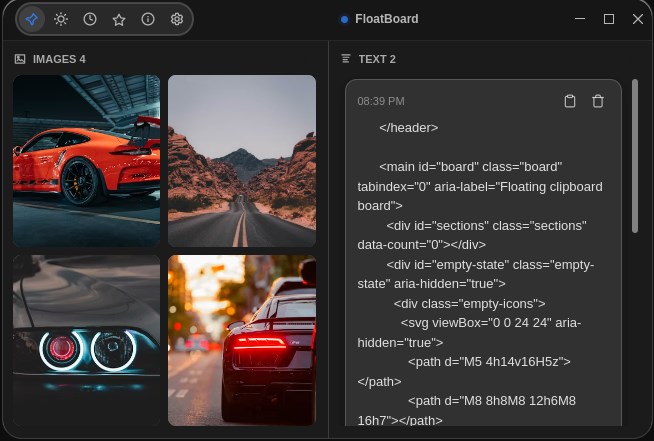
For a short task, two ordinary windows side by side may be enough: screenshot on one side, destination document on the other. If you repeatedly switch to another app, a small floating reference can keep the comparison nearby. FloatBoard lets you place an image and a text note in one visible working board, as the product image above illustrates. Add the screenshot as the image reference, then add a labelled text note with the checked wording and the source filename.
FloatBoard does not perform OCR in this workflow. Extract the text in Snipping Tool or PowerToys first, then paste the verified result into a FloatBoard text note if keeping it visible helps. Its clipboard history can help with recent copies, while the visible board keeps the image and checked note together. Save the authoritative screenshot and final text in your project files; a temporary board should not be the only copy.
If you mainly need to retrieve a recent copy, the Windows clipboard history guide covers that workflow. For a reference that must remain in view, see the floating notes guide. Use only material you are comfortable showing if you share your screen.
Recognize the limits before relying on copied text
OCR can stumble on small type, low contrast, motion blur, unusual fonts, rotated text and overlapping interface elements. It may insert a line break in the middle of a sentence, join separate columns or omit a short word. The PowerToys documentation explicitly calls for proofreading; apply that habit whichever extractor you use.
A cropped screenshot can hide the preceding instruction or the label that gives a number its meaning. Keep enough context to verify what the text refers to, while avoiding unnecessary personal data. If a critical character remains unreadable, return to the source app, enlarge the image or request a clearer source. Do not guess at amounts, dates, codes or addresses.
Remember that copying OCR text changes its form, not its trustworthiness. Treat it as a transcription you have checked for your stated purpose. If an app supplies accessible, selectable text, use that source when possible.
Questions about copying text from screenshots
Can I copy text from a screenshot without installing PowerToys?
Yes. Snipping Tool’s Text actions can extract text from a snip. Follow Microsoft’s current Snipping Tool instructions and check that your installed version offers the control.
Why did PowerToys copy the wrong words?
Try a tighter capture around the relevant line and enlarge the screenshot before extracting. Check the configured OCR language if the text uses another language. Proofread the result against the image; a second pass does not guarantee accuracy.
Is a screenshot or the extracted text better for an error report?
Keep both. The screenshot shows visual context; verified, selectable text makes the exact message easier to quote and search. Add the action that triggered the error, but exclude private fields. For a code and screenshot debugging example, see the UI bug guide.
Does FloatBoard recognize text inside an image?
No OCR feature is claimed here. Use a Windows text-extraction tool for recognition. FloatBoard can keep the screenshot and your verified text note visible together while you complete the task. Try FloatBoard if that visible reference would help.