Windows clipboard workflow
Windows Clipboard History: Copy Multiple Items and Keep Notes Visible
Press Windows + V to open clipboard history on Windows and reuse something you copied earlier. If you need instructions to stay in sight while completing a task, keep a short note in a separate visible window. This guide shows how to use both approaches, how to investigate missing clipboard entries, and how to avoid turning a temporary clipboard into your only record.
How to copy and paste multiple items with Windows + V
- Press Windows + V and turn on clipboard history if prompted.
- Copy a short piece of text, then copy a different one.
- Click where you want to insert the first item, reopen Windows + V, and select it.
- Repeat for another item. Check what was inserted before moving to the next field.
Microsoft documents a 25-entry history and a 4 MB limit per item, supporting text, HTML and bitmap formats. You can pin entries you want to retain. See Microsoft’s clipboard instructions, checked on 29 September 2026. These limits describe Windows clipboard history, not FloatBoard.
Clipboard history or floating notes: which fits your task?
Choose by what you need to do next. Pasting a previously copied address is different from reading a checklist while you fill in a form. This comparison is published by FloatBoard and describes documented roles, not a performance benchmark.
| Need | Useful starting point | Keep in mind |
|---|---|---|
| Paste an earlier copy | Windows clipboard history | Select an entry when you need to paste; check history limits. |
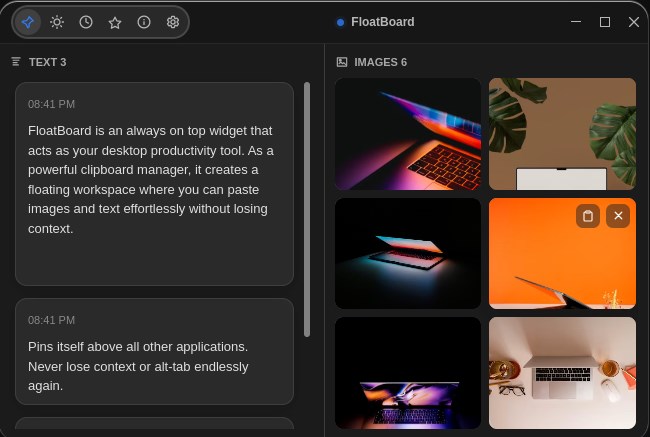
| Read a few notes while working | FloatBoard’s floating text and image window | Keep only the references for the current task; check plan limits. |
| Keep a lasting project record | Your project document or notes library | Save sources, final wording and decisions where you can find them later. |
You can use clipboard history and a visible note together. There is no need to move your entire history into a board.
Example: prepare a product listing without mixing up fields
Imagine updating a listing with an approved name, a short description and an image. The goal is to check each field against its source while editing. The following is an illustrative workflow, not a report of a measured time saving.
- Open the approved source document and the listing editor.
- Create a small FloatBoard text note with labels for the title, description and items to verify.
- Add the relevant image reference if you need to check the selected picture. Keep the original file for the actual upload.
- Use the board’s pin control and position the window beside the editor. Switch back to the editor to confirm the note stays visible.
- Paste each field, using Windows clipboard history when helpful, then compare the result against the labelled note.
- Read the final preview and save the approved version in the project document.
LISTING CHECK
Title: [approved wording]
Description source: [document / section]
Image: [original filename]
Before saving: spelling, selected image, required fields
Labels matter: two similar copied sentences can belong to different products. Keep one listing’s working set on screen at a time.
Why is an item missing from Windows clipboard history?
First check whether history was enabled when you copied it. Then check the item’s format and size. An older entry may have been displaced by the history limit. Microsoft also notes that restarting clears unpinned history. Its clipboard support page explains pinning and clearing entries.
If a particular image does not appear, keep its original file and insert it through the destination app’s image command. Do not keep recopying a large file and assume the history panel will store it. If the entry appears but the pasted result looks wrong, inspect the destination’s paste options and compare against the source.
A visible reference is useful for checking the result, but it cannot repair an unsupported clipboard format or reconstruct information that was never saved.
Keep the working set small and labelled
Before a new task, remove references that belong to the previous one. Preserve anything important in your project files first. Avoid copying passwords or other secrets into a board that might appear in a screen share.
FloatBoard’s free plan currently allows five texts and five images per day and one window. A note containing a few labelled fields is enough to try this workflow. This article does not claim that FloatBoard provides Windows clipboard synchronization or an unlimited free history.
Questions about clipboard history and floating notes
Does Windows + V show everything I have ever copied?
No. It is a limited history, not a permanent archive. Keep important material in a saved document and use the history for recent copied items.
Can clipboard history contain images?
Windows clipboard history supports bitmap content within its size limit. That does not mean every copied image or file format will be stored. Keep the original image when you need dependable access.
Can I keep copied text visible without repeatedly opening the history?
Put the relevant text in a note window. FloatBoard can keep a small text-and-image working set above other windows. If you already have the note in another app, a window-pinning tool may be enough.
What should I try first?
Try Windows + V for reuse. If the real problem is losing sight of instructions, try FloatBoard with one labelled note and read the clipboard workspace guide. For code and screenshots, follow the separate UI debugging workflow.