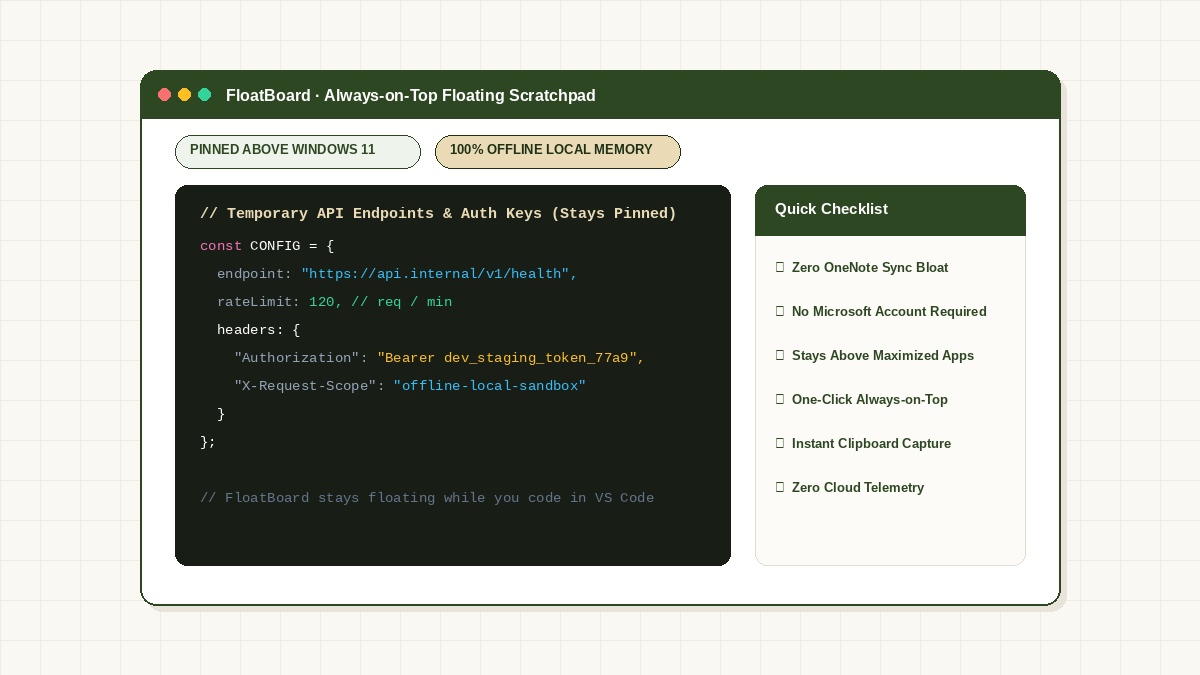
Why default Windows Sticky Notes keep sinking behind your apps
Windows 11 handles application layering through its Desktop Window Manager (DWM). By default, regular application windows lose focus and drop to the bottom layer when you click inside a full-screen or maximized app like VS Code, Figma, or Word. Classic Windows Sticky Notes behave as standard desktop child windows, which means they vanish behind active windows as soon as you start typing.
For developers and multitaskers, this causes constant Alt-Tab friction. You copy an API authorization token or staging URL, switch to your editor, and then have to minimize or un-maximize your IDE just to glance at the note again.
Method 1: The OneNote modern Sticky Notes pin feature
In recent Windows 11 feature updates, Microsoft integrated a newer version of Sticky Notes inside the OneNote ecosystem. If you pop a note out into its own window, a small pin icon appears in the top-right corner of the title bar.
While this works for simple text, it introduces significant downsides:
- Forced Microsoft Account Login: You must sign in with an active Microsoft or work account.
- Cloud Synchronization Delay: Everything you type automatically syncs to Microsoft cloud servers, which violates corporate security rules for temporary staging passwords and production API tokens.
- Heavy Memory Footprint: The OneNote background runtime frequently consumes over 180MB of system memory.
FLOATBOARD.
Stop paying the Alt-Tab tax. Keep active notes, API keys, and reference screenshots pinned permanently above your browser or code editor. 100% offline local memory.
Method 2: Microsoft PowerToys (Win + Ctrl + T)
If you install Microsoft PowerToys from GitHub or the Microsoft Store, you can use the Always on Top utility. Pressing Win + Ctrl + T forces the currently focused window—including legacy Sticky Notes or Notepad—to remain pinned above all others.
While PowerToys is a versatile utility, using it exclusively for scratchpad notes has real limitations:
- It pins the entire application window, including huge empty margins and bulky title bars.
- The visual border outline (colored border) can be distracting during video presentations.
- PowerToys runs dozens of other background modules that consume system resources on lightweight laptops.
Method 3: FloatBoard native offline floating scratchpad
FloatBoard is built specifically to solve the floating note problem without cloud accounts, telemetry, or complex shortcut configurations. It opens as an ultralight always-on-top tile directly in the corner of your workspace.
Key advantages for developers and technical workers:
- 100% Offline Local Privacy: No login, no cloud sync, and zero outbound network telemetry. Staging keys and proprietary secrets never leave your device.
- One-Click Pinning: The floating overlay stays permanently anchored above maximized browser tabs, terminals, and design tools.
- Combined Text & Image Capture: Pin code snippets, color palettes, and cropped reference screenshots in the exact same workspace.
- Instant .99 Lifetime License: No recurring monthly subscriptions or SaaS lock-in. Download FloatBoard free for Windows, Mac & Linux.
Frequently Asked Questions about Windows 11 Sticky Notes
Can I make classic Windows Sticky Notes stay on top without third-party tools?
No. Classic Windows Sticky Notes does not include a native always-on-top setting. You must either use the modern OneNote-linked version, a utility like PowerToys, or a dedicated tool like FloatBoard.
Is FloatBoard safer for sensitive developer credentials than Sticky Notes?
Yes. Microsoft Sticky Notes automatically syncs notes to the cloud if a Microsoft account is active. FloatBoard operates 100% offline with zero cloud telemetry, ensuring API keys and staging credentials remain private on your local machine.
Does FloatBoard work on dual monitors in Windows 11?
Yes. You can drag FloatBoard to any monitor, position it over a full-screen application or presentation, and it will remain pinned on that display without shifting.