Developer workflows & focus
Always on Top Windows 11 & Mac: Fix the Alt-Tab Tax and Pin Dev Notes Above Your IDE
Every software engineer knows the 3 PM burnout: your eyes ache, your brain feels scrambled, and you have barely pushed 40 lines of clean code. You did not get stuck on a difficult algorithm. You got bled dry by the Alt-Tab tax. On a laptop or single monitor, an engineer switches windows roughly 1,200 times every day—flicking between VS Code, Swagger docs, terminal logs, Slack, and Postman. Every single switch incurs 2 to 3 seconds of OS animation, eye refocusing, and working memory decay. By mid-afternoon, your focus is completely fractured. Here is why dual monitors and tiling managers fail to solve it, and how an always-on-top floating scratchpad cuts window toggling by 80%.
The brutal math behind the Alt-Tab tax
Let's do honest math on a routine engineering task: testing an API webhook.
- You copy a staging endpoint from your browser docs.
- Alt-Tab to your terminal to prepare a curl command.
- You need the bearer auth token from Postman. Alt-Tab to Postman, copy the token.
- Alt-Tab back to terminal, paste it.
- Forgot the exact JSON schema required for the payload? Alt-Tab back to browser.
- Alt-Tab back to terminal to run the test.
That was five window switches for a single command. At an average of 3 seconds per transition (including mental re-indexing), that is 15 seconds of pure friction. Multiply that across 150 small debugging cycles a day, and you spend 35 to 50 minutes every day doing nothing except flipping between overlapping windows.
Dual 4K monitors help when you are seated at an office desk, but they introduce neck fatigue, cost hundreds of dollars, and completely disappear when you are working on a 14-inch laptop at a coffee shop, co-working space, or airport.
Stop putting throwaway API keys and curl commands in heavy note apps
Where do you put temporary staging keys, auth headers, and curl templates right now? In an untitled buffer in VS Code? In a private Slack channel to yourself? Or in Notion, waiting 5 seconds for a cloud workspace to load?
Throwaway credentials do not belong in your permanent knowledge base. Pasting enterprise staging keys like Bearer sec_live_9942a781 into cloud-synced apps is also a quiet security risk that violates corporate GDPR and data-loss policies.
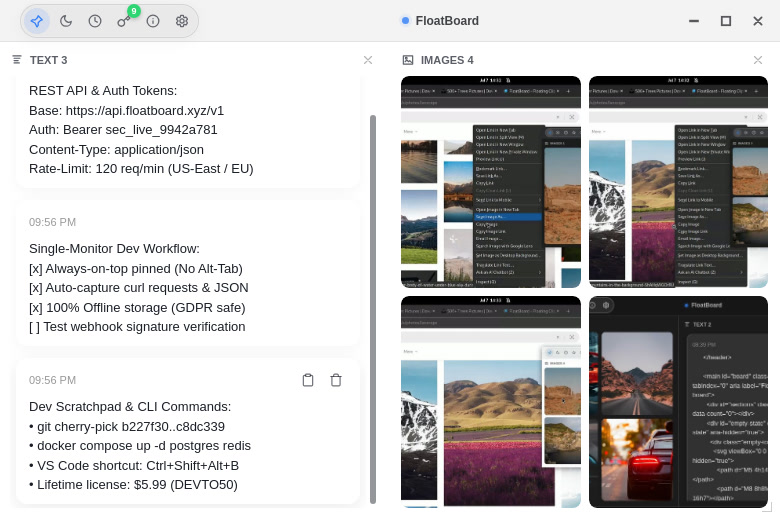
FloatBoard acts as an instant, zero-friction developer scratchpad. As shown in the screenshot above, you can pin your active endpoints, authorization tokens, and rate limits in plain sight. It stays pinned directly in the corner of your screen—always on top of your code editor and terminal. When your test passes, you close the card. No file saves, zero cloud telemetry, and 100% offline local memory.
Pairing frontend mockups with terminal commands in one pinned board
If you build user interfaces, the friction is twice as bad: you need hex color tokens, spacing steps, and Figma mockups in front of you while writing CSS or Tailwind classes.
Splitting your editor into vertical thirds turns your code editor into an unreadable 45-character column. FloatBoard solves this with a native two-pane layout: text notes on the left, visual reference screenshots on the right. You keep your IDE full-width while design parameters float in the empty gutter of your screen.
Why PowerToys and Sticky Notes fail the developer test
Developers frequently test built-in tools before seeking dedicated utilities. Here is why the common alternatives fail:
| Feature | FloatBoard | Microsoft PowerToys (Always on Top) | Windows Sticky Notes |
|---|---|---|---|
| Mixed Text & Image Boards | Yes (side-by-side text cards and image reference gallery) | No (pins entire foreign application windows only) | Limited (images inline in single vertical notes) |
| Always on Top Pinning | Built-in one-click pin with transparent visual state | Hot-key shortcut border outline | No (disappears behind active window upon clicking away) |
| Clipboard Auto-Capture | Yes (automatically pins copied text and images when enabled) | No (requires separate clipboard utility) | No |
| Cross-Platform Support | Windows 10/11, macOS, and Linux (Debian, Arch, Flathub) | Windows 10/11 only | Windows only |
| Licensing & Offline Security | $5.99 one-time lifetime license · 100% offline local storage | Free open-source utility | Free with mandatory Microsoft account cloud sync |
PowerToys is great for pinning a full browser window, but it hogs half your screen. Sticky Notes disappears the millisecond you click into VS Code. FloatBoard gives you a purpose-built, compact floating surface designed specifically for active developer parameters.
Developer FAQ: Screen pinning & privacy
Will FloatBoard slow down my workstation?
No. FloatBoard is built for speed with a tiny resource footprint. It consumes negligible CPU when idle and opens instantly without background daemon bloat.
Is it safe for proprietary client secrets and API keys?
Yes. FloatBoard does not connect to any external cloud database. Everything you paste lives solely in your local machine storage. No analytics, no telemetry, no leaks.
What platforms are supported?
FloatBoard runs natively on Windows 10/11, macOS (Intel & Apple Silicon), and Linux via native .deb, Arch Linux AUR, and Flathub. You can also use the free browser-based WebPad using the Document Picture-in-Picture API with zero installation.
Is there a developer discount available?
Yes. Use promo code DEVTO50 at checkout to receive 50% off the lifetime plan, bringing full unlimited desktop access to under $3.00.
Reclaim your dopamine: Kill the Alt-Tab habit
Eliminating window-switching friction is the highest-leverage upgrade you can make to your daily programming setup. Download FloatBoard for Windows, Mac & Linux to pin your first working scratchpad over your editor.
Want to test the floating experience in your browser right now? Open our free WebPad online floating tool, or explore our guides on floating clipboard management and always-on-top sticky notes.