Meeting notes & desktop workflow
How to Keep Meeting Notes Visible During a Video Call
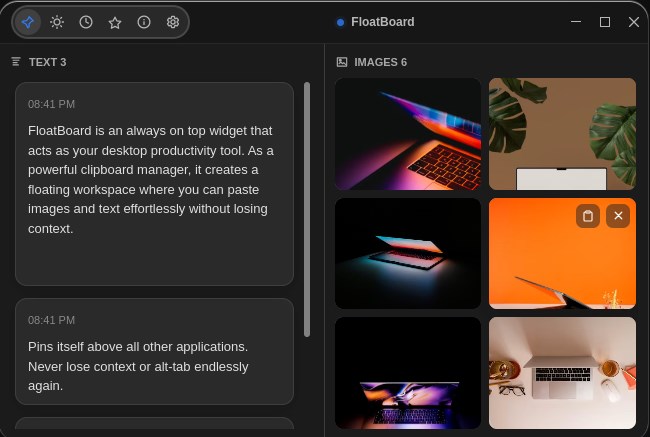
To keep meeting notes visible during a video call, prepare a short personal checklist before the call, place it beside the meeting window, and record decisions and actions in the team's shared notes. If you use Microsoft Teams, its collaborative Notes can hold the agenda and official follow-up tasks; a small pinned FloatBoard window can hold your own prompts while you speak.
Decide what belongs in the shared record
Before arranging windows, decide which notes need to be visible to the whole meeting. A shared agenda, agreed decision, task owner and due date should live in the meeting record. Your private prompts might be a question you must ask, a figure to verify or the order in which you want to present. Do not leave the only copy of an action in a personal scratchpad.
Microsoft's Teams meeting notes guide says attendees can add an agenda, notes and tasks that others can see and edit. Changes appear live, and notes remain available after the meeting. In Teams, open Notes from the meeting controls. You can prepare an agenda from the calendar before the meeting too. Access can vary: Microsoft says external attendees cannot access or edit meeting notes. If your call includes guests, agree on a record they can actually receive.
Use a personal visible note for your own attention, not as a substitute for that shared record. This is a manual workflow published by FloatBoard.
Arrange the call, shared notes and your prompt card
- Open the shared agenda first. In Teams, select Notes and check that the agenda is the one for this meeting. Microsoft also documents an Open in new window option for meeting Notes, Chat and Copilot, so you can move or resize meeting content while the call continues.
- Make room for the conversation. Keep the speaker or shared presentation large enough to follow. Teams can reduce the meeting to a smaller window when you switch to another app; its controls remain available there. On one screen, avoid stacking so many panels that neither the speaker nor the task list is readable.
- Place your personal note. Add a short agenda or question list to FloatBoard, enable its pin control and put it beside the call. The floating-notes guide explains the text-and-image board. A single text card is enough for most meetings; an image is useful only if you genuinely need a visual reference.
- Rehearse a window switch. Click the call, shared notes and the document you may present. Confirm that your note stays readable without covering mute, leave or share controls. If it blocks the meeting, shrink it or use a side-by-side layout.
Copy a compact agenda and action template
Start with a note you can scan while somebody else is talking. The example below is fictitious. Replace every bracketed field before the call; leave the decision and action lines blank until the group confirms them.
MEETING: [topic] — [date]
OUTCOME NEEDED: [one decision or result]
AGENDA: 1. [question]  2. [choice]  3. [next step]
ASK: [one question I must not forget]
DECISION: [what the group agreed, or pending]
ACTION: [verb + deliverable]
OWNER: [one named person]
DUE: [date and time zone, or agreed milestone]
OPEN: [unresolved question + who will answer]
For example, a release-planning call might end with: Decision: move the checklist review to Friday; Action: send the revised checklist; Owner: Maya; Due: 9 October, 15:00 Casablanca time. That is a sample format, not a report of a real meeting. Use an explicit date when possible; “next week” becomes unclear after the call. If the group cannot choose an owner or due date, mark it pending and ask before ending the meeting.
Keep the personal card to one small working set. Put detailed background and final outcomes in Teams Notes or the team's approved project document. If you need to keep a source beside a draft after the call, the research-notes workflow covers that separate task.
Capture the decision without trying to transcribe everything
During discussion, write keywords that help you ask the next question. When a decision sounds settled, read it back: “We are choosing option B for Friday's review. Is that right?” Record the confirmed wording in the shared notes. If someone volunteers to act, ask for the deliverable and date as well as their name. “Maya will send the revised checklist by 9 October” is usable; “Maya to follow up” is not.
Separate a proposal from an agreement. A useful shorthand is Proposed, Decided and Open. A proposal can remain on your personal card until the group resolves it; agreed work belongs in the meeting record. If the conversation moves quickly, write a short placeholder and return to it before the call ends. Avoid guessing what a quiet participant accepted.
Teams meeting notes let participants tag people in agenda and task items, according to Microsoft's instructions. If your organization uses that workflow, add the agreed owner there. A name on a private floating note does not assign a task in Teams.
Check what people will see before you share
A visible personal board can also be visible to other people if you share the whole display. Before selecting Share, remove sensitive prompts, customer details and private links from the screen. Microsoft says Teams can present either an entire screen or a chosen window. Choose the window containing the material you intend to show when that fits the presentation, and inspect the preview or ask a trusted colleague what is visible. Do not assume that a pinned note is private merely because it sits outside your slide or browser content.
Pause before changing what you share. If you need to switch documents, stop sharing, arrange the new window and start again with the intended selection. This is a practical privacy precaution, not a guarantee that a particular operating system or calling app will always isolate every overlay. If an image on your board includes confidential information, remove or redact it before the call.
Choose the simplest visible-note setup for your call
The options answer different needs. This is a FloatBoard product guide, not an independent performance test. The Teams and PowerToys descriptions are based on linked Microsoft documentation checked on 2 October 2026.
| Setup | Best use | Limit to remember |
|---|---|---|
| Teams collaborative Notes | Shared agenda, live decisions and assigned follow-up tasks. | It is visible to eligible meeting participants; Microsoft says external attendees cannot access or edit these notes. |
| PowerToys Always On Top | On Windows, pin the notes app you already use. The default shortcut is Windows + Ctrl + T. | It pins a window; that notes app still stores and organizes its content. |
| FloatBoard | Keep a small personal text checklist and optional image reference above other apps while you follow the call. | It is a personal working board, with no automatic transcription or Teams synchronization. See the current plan limits. |
On a crowded display, Teams Notes in its own window may be enough. If you already have a suitable note app on Windows, PowerToys can pin it. Choose FloatBoard when you want a compact text-and-image prompt card that remains in sight as you move between the call and other work.
Finish with an agreed record and clear your prompt card
Reserve the last minute to read out the decisions and action list. Confirm each deliverable, owner and due date, including a time zone where it matters. Record any unresolved point as an open question with the person who will answer it. Then check that the shared notes show the agreed version, rather than only your shorthand.
After the call, return to the saved meeting record or your team's project system to correct obvious gaps. Keep relevant links there. Remove obsolete or sensitive text from the personal board before your next screen share. FloatBoard's role was to keep the next prompt visible during the conversation; the persistent record belongs where your team expects to find it.
If this arrangement helps, download FloatBoard and try it with one short meeting card. For notes you copied earlier and need to retrieve, see the separate clipboard-history comparison.
Frequently asked questions about visible meeting notes
Can I keep my notes visible without a second monitor?
Yes. Reduce the call to a smaller view where your meeting app supports it, pop out its notes, or put a compact note beside the call. Keep faces, shared content and controls readable; if an overlay hides them, switch to side-by-side windows or a paper checklist.
Are FloatBoard notes the same as Teams meeting notes?
No. Teams Notes are collaborative meeting content for eligible participants. FloatBoard holds a personal working set of text and images on your desktop. Copy confirmed decisions into the shared record yourself; there is no automatic sync or transcription in this workflow.
Will a pinned note appear when I share my screen?
It may appear if you share your whole display. If you share a specific window, check the preview and the actual participant view before relying on that selection for privacy. Clear sensitive material before presenting.
What should an action item include?
Write a concrete deliverable, one owner and an agreed due date. Add an open question when a decision is pending. Confirm the wording aloud and place the final item in the team's shared notes or task system.