Writing with notes
How to keep reference notes visible while writing
When a draft depends on a few source details, repeatedly reopening the source can interrupt the sentence you are writing. A small set of always-on-top notes can keep those details beside your document. The key is to separate evidence from your own ideas and leave enough screen space to write comfortably.
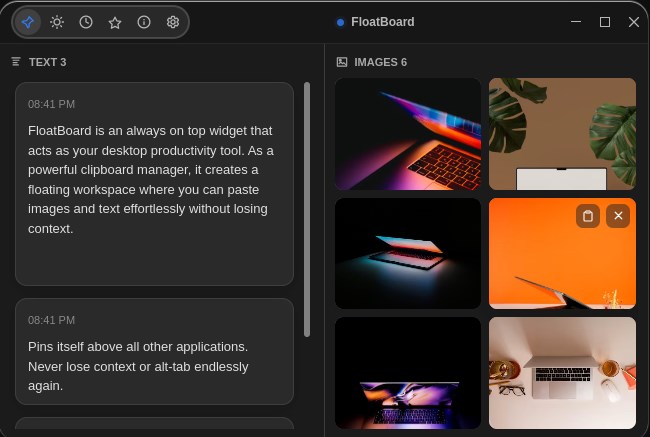
Choose notes for the next section of your draft
Start with the paragraph or section you are about to write, not the whole research project. Pick the information you expect to consult repeatedly: a short quotation, a source link, a question the paragraph must answer, or an image you need to describe.
Keep the original material in its normal location. A floating note is a working reference, not a substitute for the source document. If a fact needs a date, unit or qualification to remain accurate, include that context rather than copying only the attractive sentence.
For an image reference, write down what you are looking at and where it came from. This matters especially when a thumbnail resembles several other files in the project.
Place the notes beside your writing window
- Open the draft first. Choose a comfortable document width and text size. The reference board should fit around your writing, not force the draft into a narrow strip.
- Add a short working note to FloatBoard. Label a quotation as a quotation and include its source. Put your own interpretation in a separate labelled block.
- Add a visual reference only if it helps. The screenshot shows text and images in separate panels. You do not need to fill both panels for a text-only task.
- Enable always-on-top. Use the pin control and place the board beside the draft. Switch back to your writing app to check that the reference remains visible.
- Write a paragraph before adding more. If you repeatedly need information that is missing, add that detail. If a note is distracting, remove it from the current working set.
On a small screen, side-by-side windows may leave too little room. Try a shorter note or your operating system’s window arrangement tools. A floating window is useful only when it makes the reference easier to read.
Example: prepare a product-description draft
Imagine writing a short description of a desktop notes app. Your working note could look like this:
Section: What the app helps you do
Source: official feature page + date checked
Confirmed detail: notes stay visible above other windows
My explanation: keep a short reference beside a draft
Check before publishing: supported systems and plan limits
This is a template, not a claim that every notes app provides those features. Replace the details with the product you have actually checked. For FloatBoard, the floating notes overview, download page and pricing page provide the product context.
The distinction between ‘confirmed detail’ and ‘my explanation’ helps prevent a useful interpretation from becoming an unsupported product claim. Before publishing, return to the source and verify the wording and any numbers.
Keep quotations, sources and your own wording distinct
Use quotation marks for copied wording and keep a link or document reference with it. When you paraphrase, check that your sentence preserves the meaning, not just the topic. A visible note can make source checking easier, but it does not perform that check for you.
Do not use the board as an excuse to copy someone else’s text into a finished article without attribution or permission where required. If you are working with sensitive research or private correspondence, use only the information appropriate for that workspace and avoid including it in screenshots you share.
For a longer research project, use a reference manager or organized source document. Those tools are better suited to bibliographies and large collections; a floating board is for the small subset needed right now.
Review the draft, then refresh the working set
At the end of the section, check each factual statement against its original source. Move useful long-term notes into your project document. Then replace the working references with the material needed for the next section.
If you mostly need to recover previously copied text, read the clipboard history guide. If you are comparing visual ideas instead of writing prose, the image reference board workflow explains how to keep that task focused.
You can try this workflow with one window and a small number of notes. FloatBoard’s free plan includes 5 texts and 5 images per day; check the pricing page for current details rather than building a workflow around an assumed unlimited plan.