Learning & desktop notes
How to Take Notes While Watching a Tutorial on One Screen
When following a software tutorial on one screen, keep three things in your notes: the timestamp, the next action to try, and the result you expect. Pause to practise each step, then record what actually happened. A split-screen layout or a small floating note can keep those instructions visible beside your app without copying the entire lesson.
Choose one result to reproduce
Before playing the tutorial, write down what you want to make: a responsive card, an image export or a spreadsheet formula. Record the tutorial URL and the software version used by the instructor if it is shown. Menu names and features can differ between versions.
For this example, suppose you are learning to build a card that changes from two columns to one on a narrow screen. You need the relevant breakpoint and layout rule, not a transcript of the whole video. Keep the completed exercise in your project folder.
Split screen, PowerToys or FloatBoard?
Start with the layout that leaves your working app readable. The options below serve different needs; this is a FloatBoard product guide, not an independent comparative test.
| Layout | Best fit | Trade-off |
|---|---|---|
| Side-by-side windows | Watching the instructor while practising | Both apps need enough width to show their controls. |
| PowerToys Always On Top | Keeping an existing note app visible on Windows | It pins a window; your chosen app still handles the notes. |
| FloatBoard | Keeping a short action note beside a screenshot or copied reference | A compact working set fits better than an entire lesson transcript. |
With PowerToys installed and Always On Top enabled, select a note window and press Windows + Ctrl + T, the default shortcut, to toggle pinning. See Microsoft’s instructions, checked on 29 September 2026. If you changed the shortcut, use your configured combination.
A tutorial note template you can copy
LESSON: [title + URL]
SOFTWARE: [app and version]
TIMESTAMP: [mm:ss]
GOAL: [one result]
NEXT ACTION: [one thing to try]
EXPECTED: [what should change]
ACTUAL: [what happened]
QUESTION: [what remains unclear]
For the responsive-card example, the next action could be: ‘Change the grid to one column below the chosen breakpoint.’ The expected result is: ‘Image appears above the text without horizontal scrolling.’ If it does not work, record the viewport width and the observed result before changing another rule.
The timestamp points back to the explanation. The actual-result line preserves your own observation. Keeping those separate helps you distinguish what the instructor said from what your project did.
Follow a watch, pause, practise and check cycle
- Watch one meaningful step. Stop when the instructor completes an action you can reproduce.
- Write the action in your own words. Copy a command only when exact spelling matters, and keep its source.
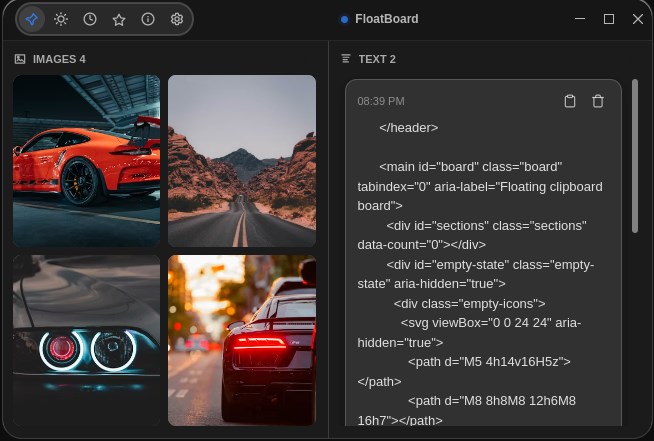
- Put the note in view. In FloatBoard, add your short text note, use the pin control and place the window beside your working area.
- Practise with the video paused. Return to your app and complete that single action.
- Compare the result. If a visual detail matters, keep one relevant screenshot alongside the note. Check small details in the original image.
- Record the outcome. Write what worked or the question to revisit, then advance to the next step.
Try this with one note and one image first. FloatBoard’s free plan has daily text and image limits, so use the board for the active step and your saved notes for the full lesson. The window does not need to contain every screenshot you take.
What to do when the tutorial and your result differ
A menu item is missing: compare your software version with the lesson before trying unrelated commands. Note the version difference and consult that app’s documentation.
Your output looks different: compare at the same viewport size, zoom level or export setting. A screenshot without those conditions can lead you to fix the wrong thing.
The note covers a control: move or resize the note, or temporarily unpin it. If you constantly need to uncover the app, switch to side-by-side windows or pause the video more often.
You have too many unanswered questions: save them in the lesson document. Keep only the question blocking the current step in the floating note. For a reproducible interface problem, the code-and-screenshot debugging guide offers a more detailed evidence template.
Turn the temporary note into a useful record
At the end of a lesson, save three things together: your exercise, the source URL with useful timestamps, and a short explanation of the step you can now perform. Move unresolved questions into that record before clearing the board.
Use screenshots you are allowed to retain and do not redistribute a paid course’s materials without permission. A screenshot can remind you where a control was, but your own explanation is what makes the note reusable when the interface changes.
Questions about taking notes during tutorials
Should I write down everything the instructor says?
For a practical software task, begin with the action, expected result and question you need answered. Add background explanation when it changes how you perform the task. A full transcript can be useful for other purposes, but it is hard to use as a small on-screen checklist.
How can I take notes without a second monitor?
Pause the lesson while practising, use side-by-side windows when space allows, or keep a short note pinned above your app. Change the layout if it makes controls too small to use comfortably.
Does FloatBoard automatically transcribe or synchronize a video?
This workflow uses manually written notes, timestamps and selected image references. It does not depend on transcription, a video integration or automatic timestamp capture.
Can I use this for reading a written tutorial?
Yes. Replace the timestamp with the heading or section link. For longer reading and drafting, use the research notes workflow. To try the compact tutorial setup, download FloatBoard and start with a single next-action note.